
Connect your YouTube channel and official profile
Connect your YouTube channel and Pinpage in both directions. Check the public links and official channel connection status in Pinnn.
If you run a YouTube channel, share an official introduction alongside your videos. A Pinpage link in the channel description gives viewers a route to featured work and contact details, and provides a connection Pinnn can check when verifying an official channel.
Connect the YouTube channel on your Pinpage and share the same Pinpage from YouTube. Check that the two URLs really connect to make the relationship between the channel you operate and your profile clear.
Match the channel URL and Pinpage URL
First put your exact YouTube channel URL on the Pinpage. A single video URL and a channel URL serve different purposes. Connect the channel in its official channel card and individual videos in featured work cards.
Match the channel you actually operate with your public Pinpage. Click the link in the YouTube description to check that the Pinpage opens. Review the current connection status in Pinnn's official channel verification screen too.
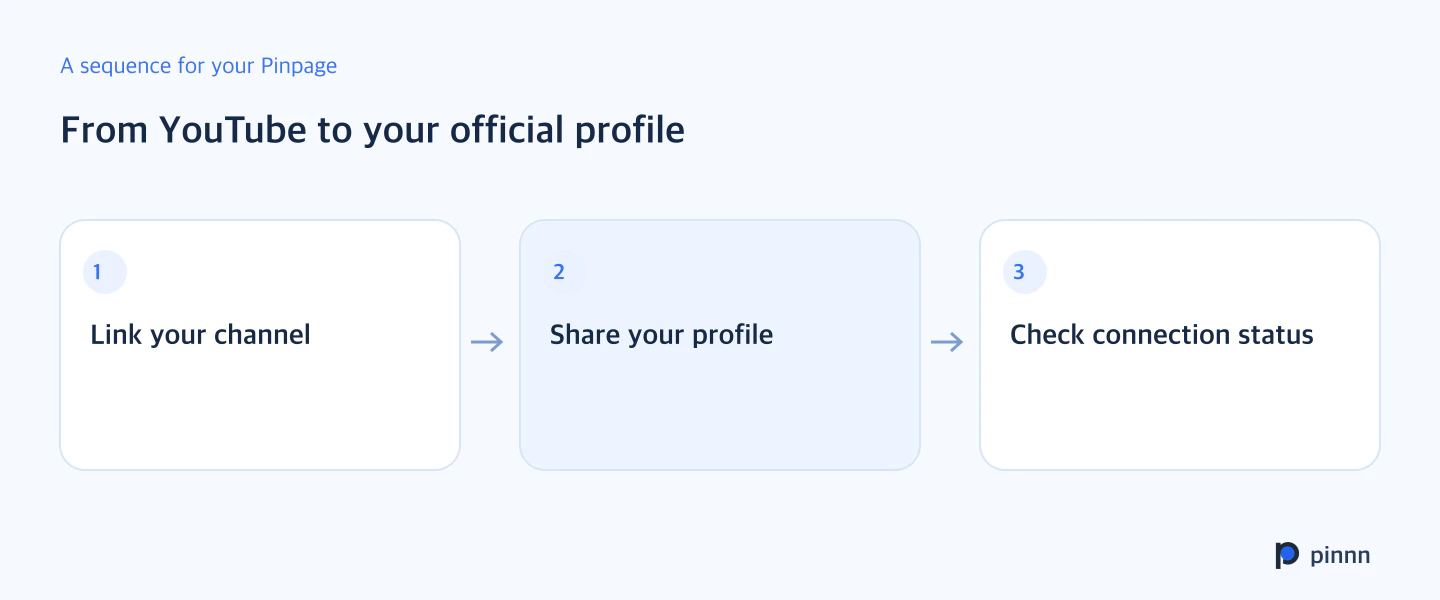
Give YouTube visitors a route to your official introduction
Add the public Pinpage URL in YouTube's channel description and link settings. Choose a name that explains the destination, such as official profile or work and contact. Check that the link is visible on the channel home and opens correctly.
If the verification status does not change after adding it, compare the channel URL, profile URL, and public link location in order. Check for an old handle or a Pinpage belonging to another project. Continue with the next verification step shown in the interface.
Prepare what a viewer needs after watching
Someone arriving from YouTube has already seen a piece of content. Place your activity introduction, other featured work, and contact route in sequence. Give visitors more to explore than a link sending them straight back to the channel.
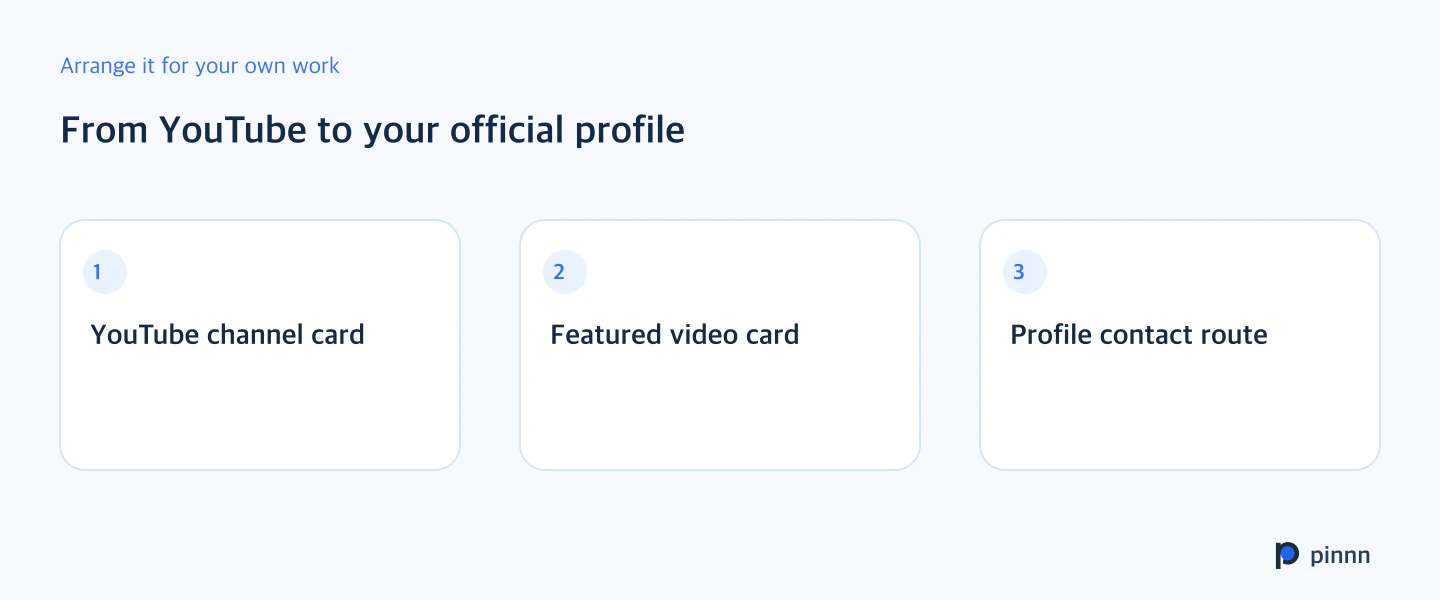
Open both the channel card on the Pinpage and the introduction link on YouTube. Once the URLs match, check the official channel connection status in Pinnn and organize featured work. Explore Pinnn AI and official information.
Sources
- Pinnn current service and plan guide — Pinnn
- Search OS background reading for Connect your YouTube channel and official profile — Search OS · Sep 9, 2026
More guides
Put these ideas into practice.
Bring your bio and official channels together on a Pinpage.